
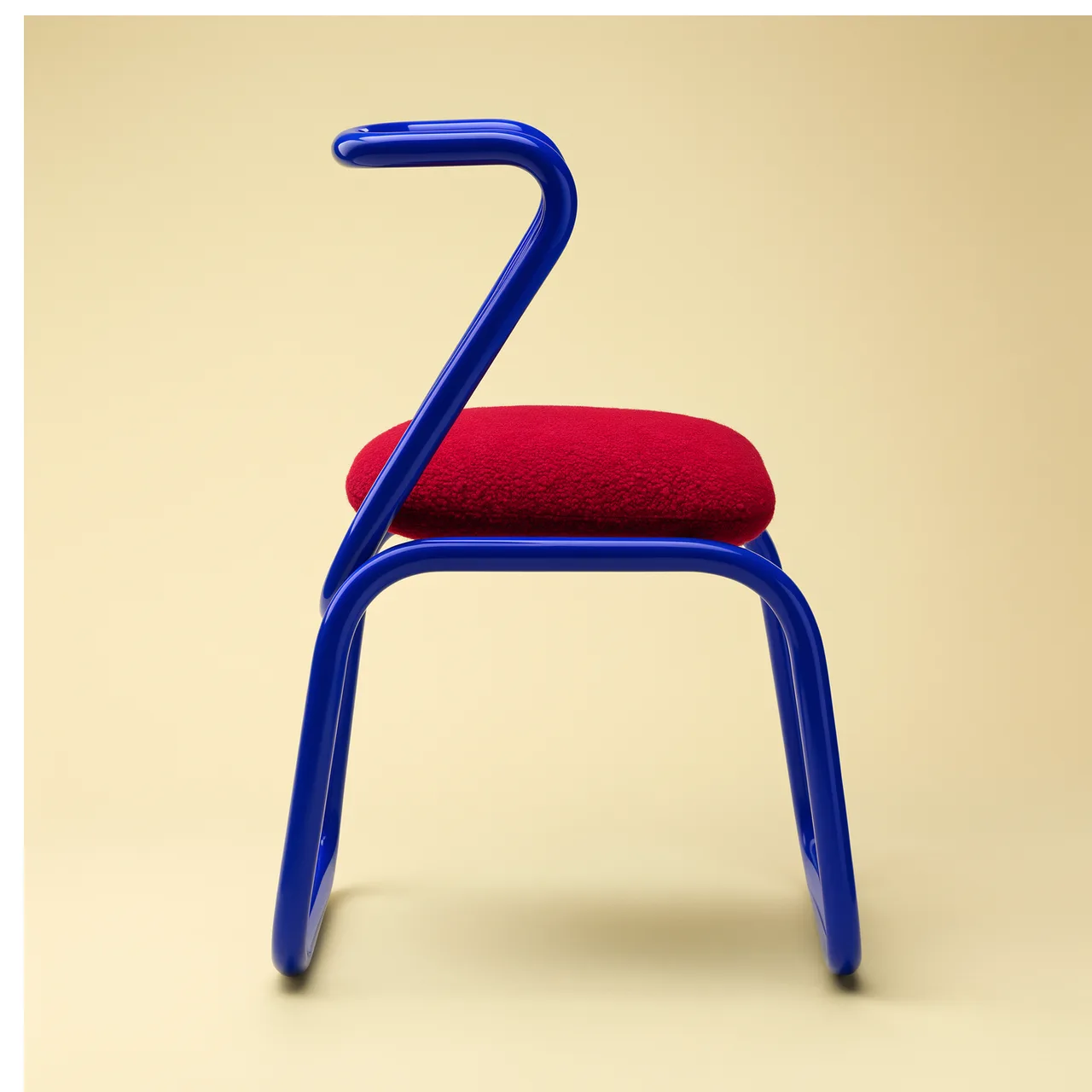
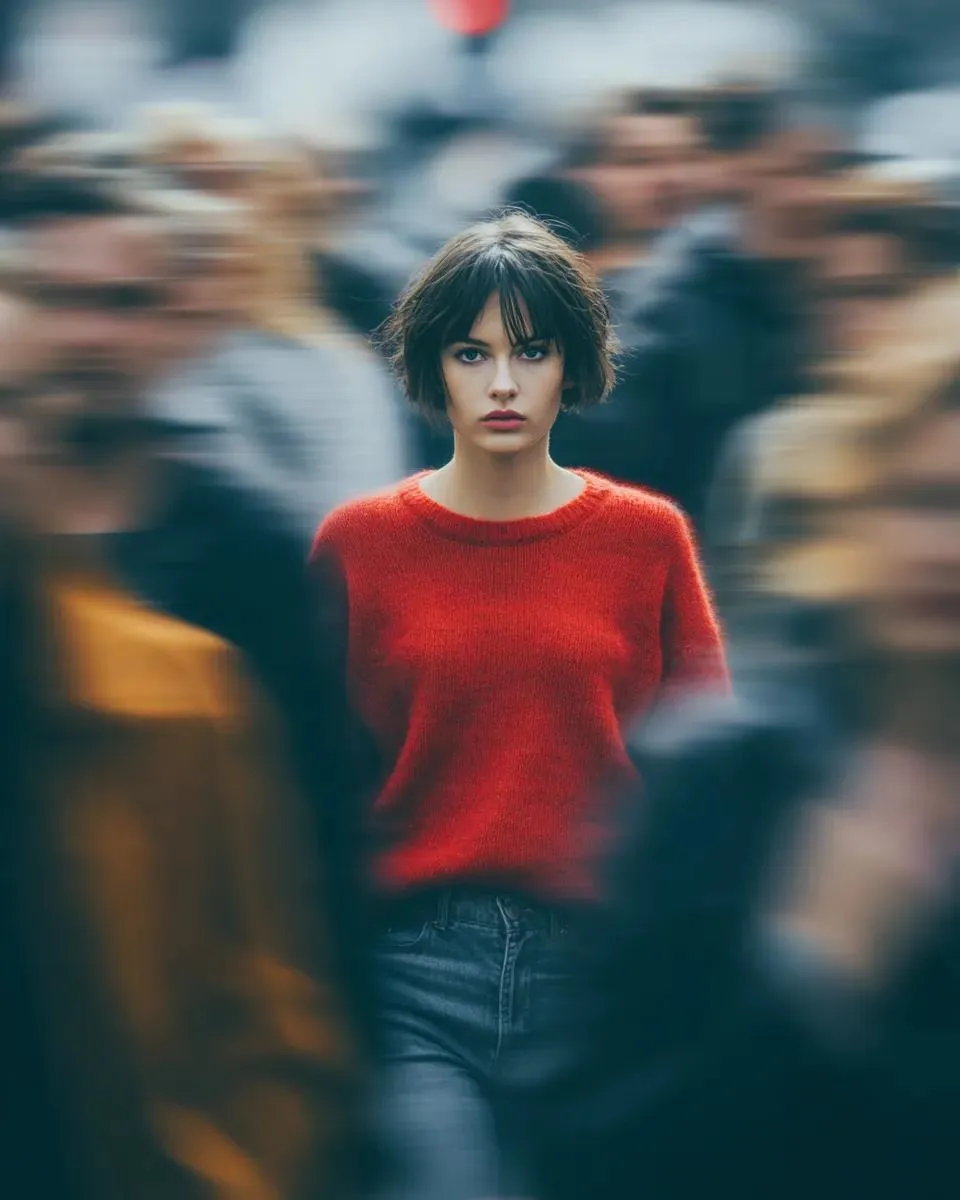
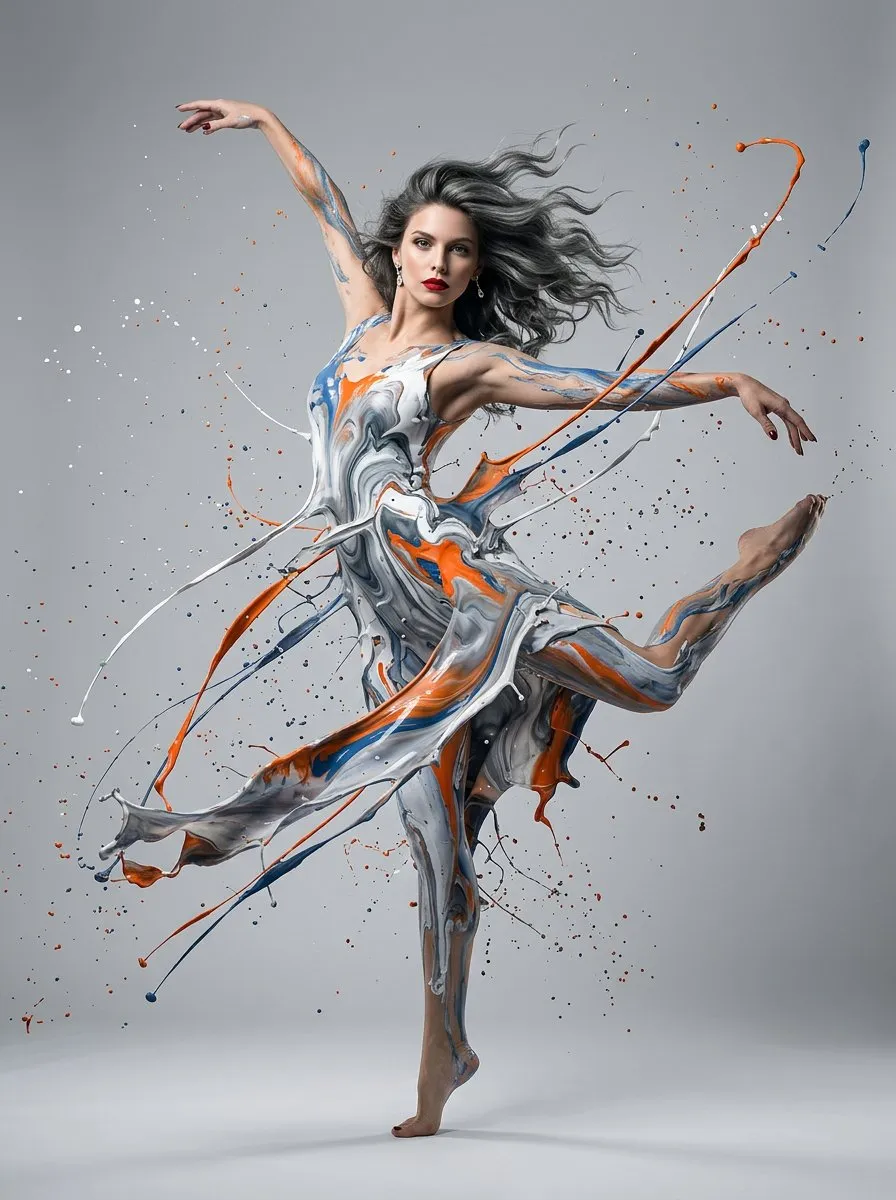
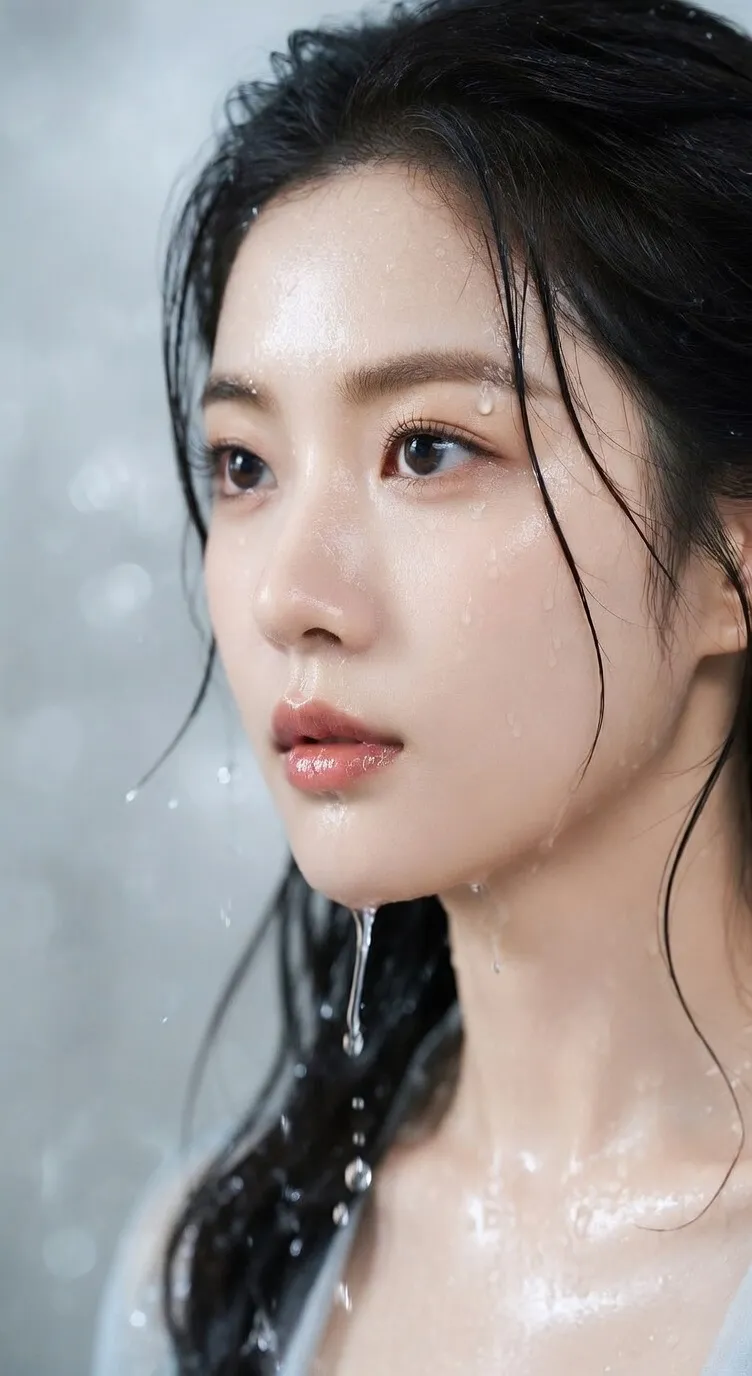
GPT image 2
Form, compare, and refine a visual frame.
Preview
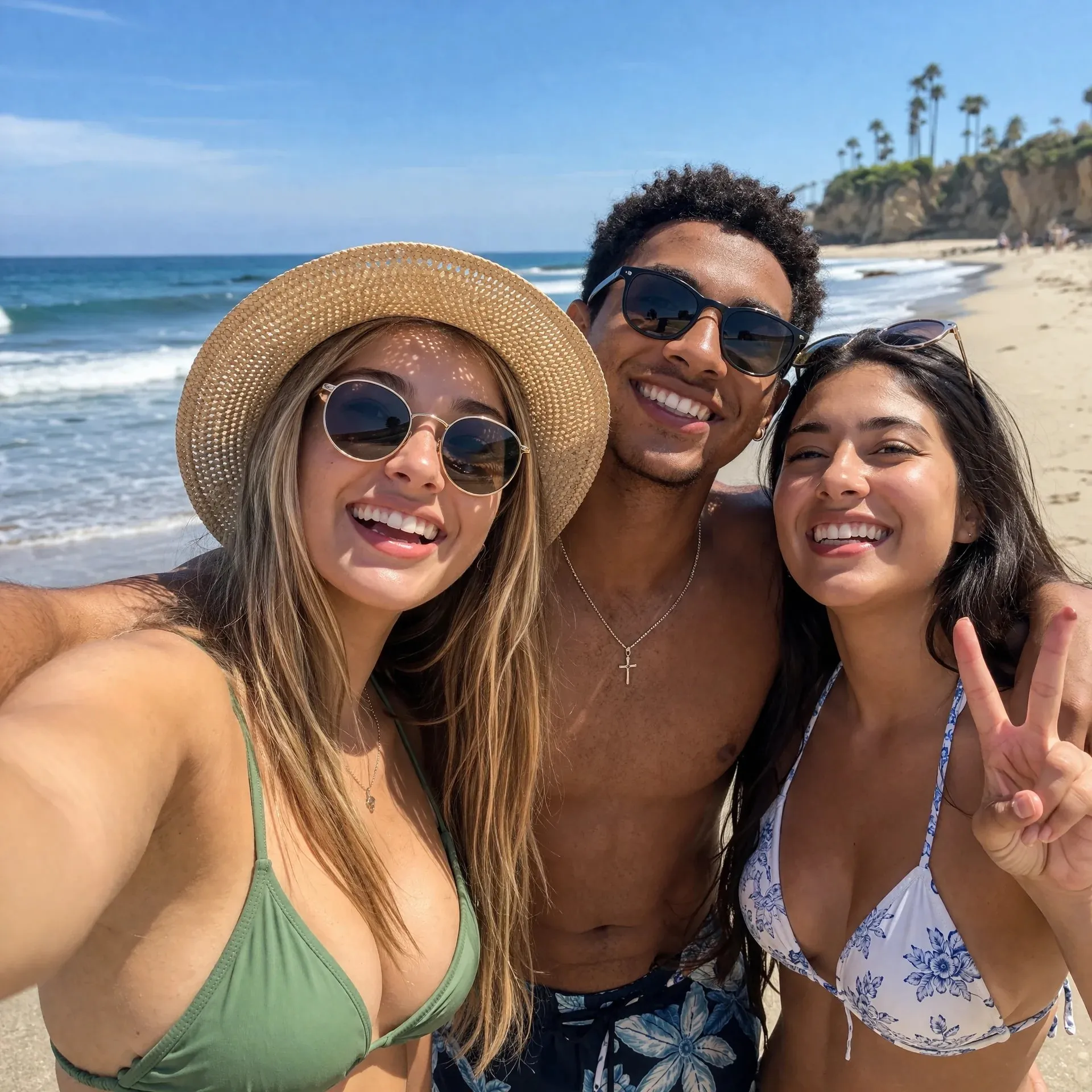
Move from GPT image 2 to a related zelsaro workflow without abandoning the original direction.
Choose text-to-image or guided editing, add references where consistency matters, and set the ratio and resolution around the final destination.
Form, compare, and refine a visual frame.
State what belongs, what must stay, and where the work will live.
Inspect accuracy, continuity, and rights before export.
Put creative judgment before model choice, so every control serves the intended result.
Describe the subject, action, setting, camera, tone, and destination.
Add approved material when appearance, composition, or pacing is hard to explain in words.
Review available modes, size, duration, ratio, and estimated credits.
Inspect the details, keep the strongest direction, and make a targeted next move.
Choose text-to-image or guided editing, add references where consistency matters, and set the ratio and resolution around the final destination.
Generate or revise images with prompts and references, flexible aspect ratios, and 1K, 2K, or 4K output for detailed creative and commercial work.
State the audience, channel, subject, and job the result needs to perform.
Call out required elements, exclusions, and brand limits.
Keep only the few results that move the creative conversation forward.
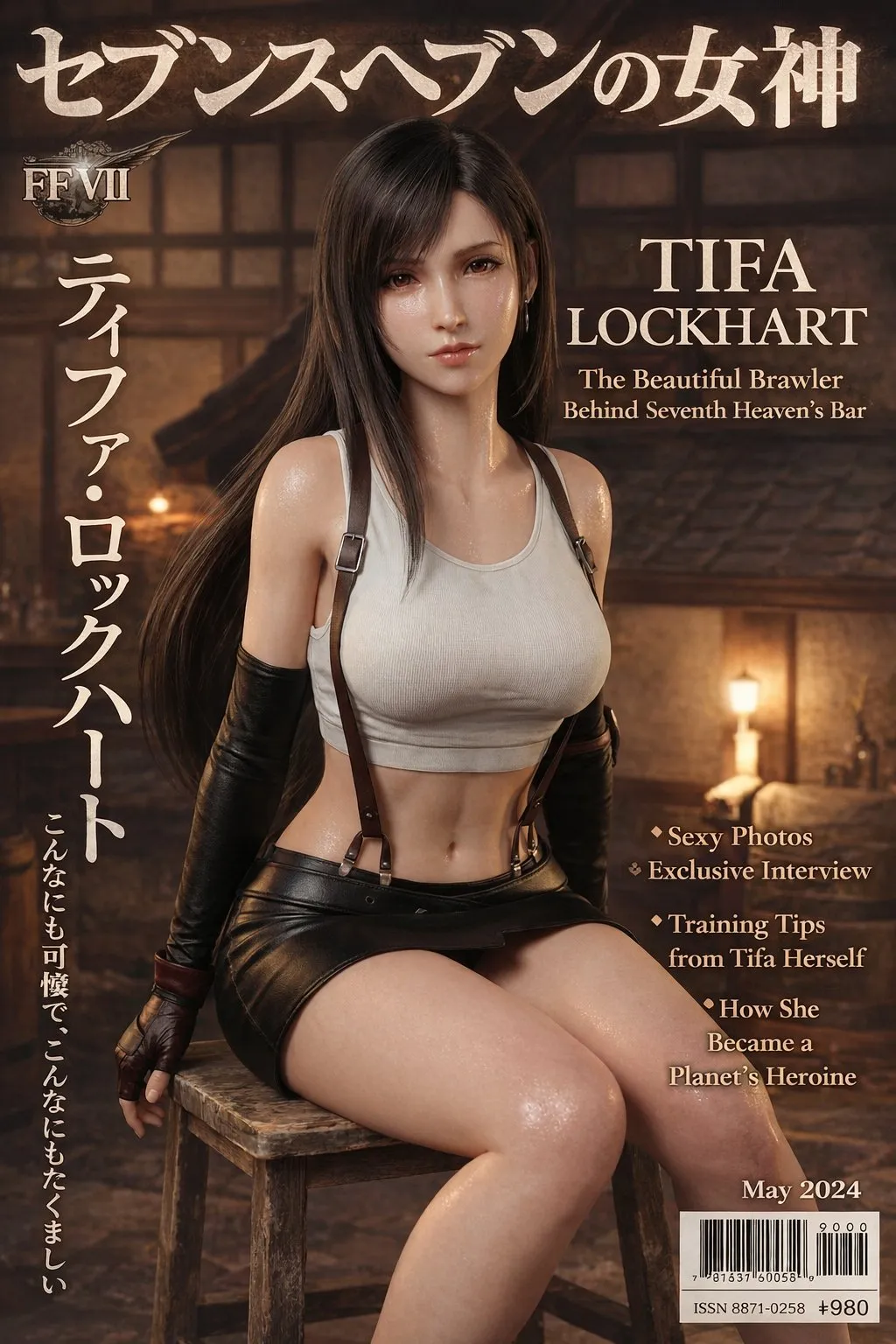
Inspect the selected GPT Image 2 result at delivery size, then revise detail, consistency, and channel fit before export.
Protect identity, product form, lighting logic, or motion continuity.
Focus one pass on scene, camera, style, ratio, or pacing.
Review text, details, rights, brand accuracy, and channel specifications.
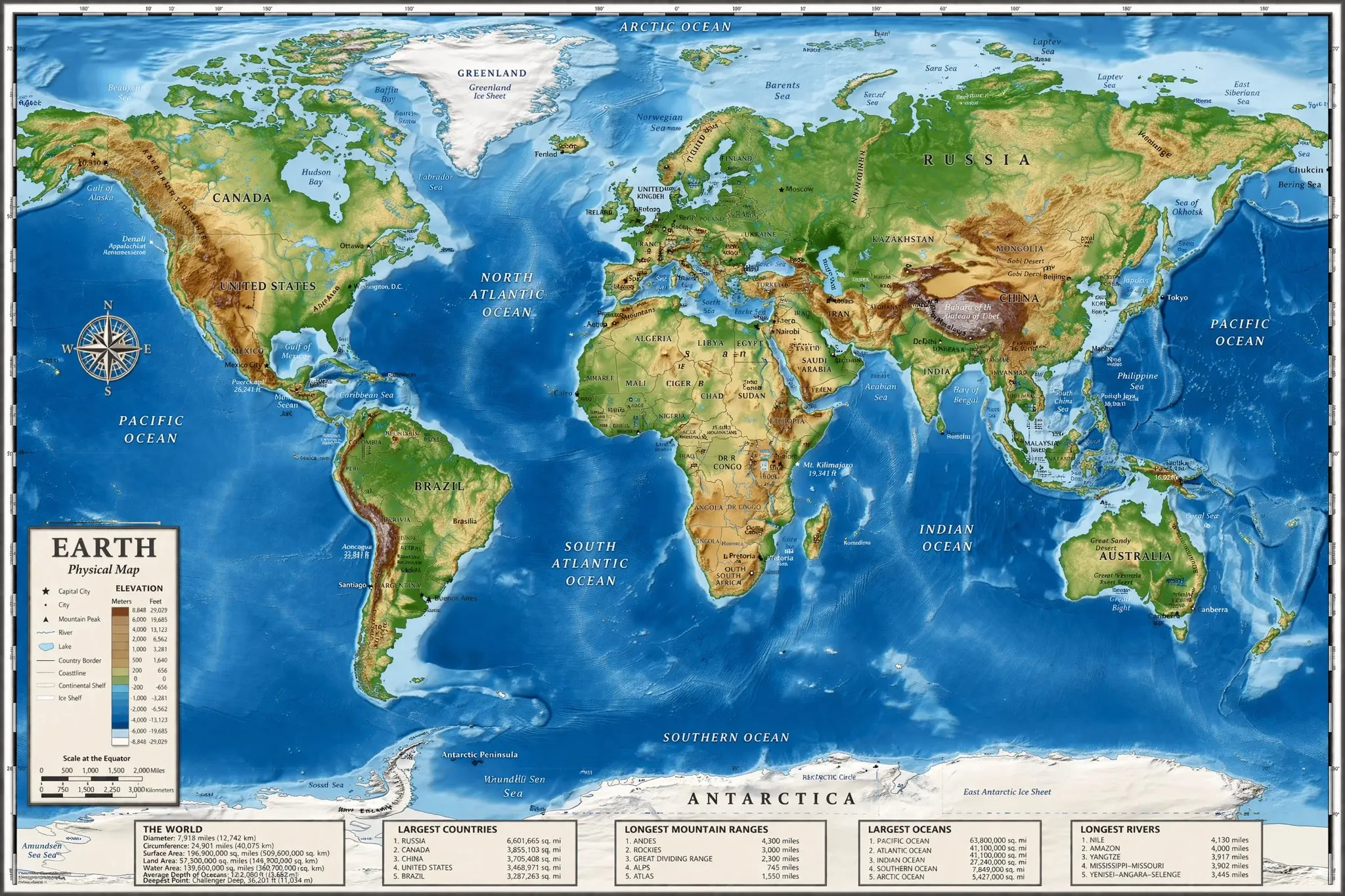
Explain why the result exists, not only what it should resemble.
Choose the references, mode, and output specification that remove ambiguity.
Keep the strongest version, address a specific problem, or move into the next production tool.
Generate or revise images with prompts and references, flexible aspect ratios, and 1K, 2K, or 4K output for detailed creative and commercial work.
No. References matter most when identity, product form, composition, style, or motion needs a visual constraint.
Yes. The generator estimates credits from the selected model, mode, and output settings before submission.
Review accuracy, lettering, continuity, trademarks, likeness, copyright, and channel rules before publication.
Bring a clear direction and make the next visual frame.